
First, check your Wi-Fi network to make certain it has a strong signal and isn’t congested. Restart your smart device and router to clear temporary glitches. Verify your device’s Wi-Fi settings, including the correct network and password. Make sure your router’s firmware is up to date and move the device closer to the router if needed. If issues persist, reset the device to factory settings and disconnect interfering devices. For more tips, continue to explore these helpful steps.
Key Takeaways
- Verify your Wi-Fi signal strength and ensure your router firmware is up to date.
- Restart your smart appliance and router to clear temporary glitches.
- Improve device placement closer to the router, avoiding obstructions and interference.
- Confirm device compatibility, correct Wi-Fi network, and accurate security settings.
- Reset the device to factory settings if connection issues persist, then reconfigure.
Check Your Wi-Fi Network Status

Before connecting your smart appliance, you should check your Wi-Fi network status to verify it’s functioning properly. Start by examining your Wi-Fi signal strength; a weak signal can cause connection issues. If your device has trouble maintaining a stable connection, it might be due to network congestion, especially during peak hours when multiple devices are streaming or downloading simultaneously. Use your smartphone or computer to see if other devices are experiencing similar problems. If the Wi-Fi signal is weak or there’s significant network congestion, your smart appliance might struggle to connect or stay connected. Addressing these issues guarantees your network is ready for your device’s connection attempt, reducing frustration and improving overall performance. Additionally, understanding your router’s capabilities can help optimize your network for better connectivity. To further enhance your connection, consider updating your firmware to ensure your router operates with the latest security and performance features. Sometimes, restarting your router can resolve temporary glitches that prevent devices from connecting properly. Checking your network settings can also help identify any configuration issues that might interfere with device connections.
Restart Your Smart Device and Router
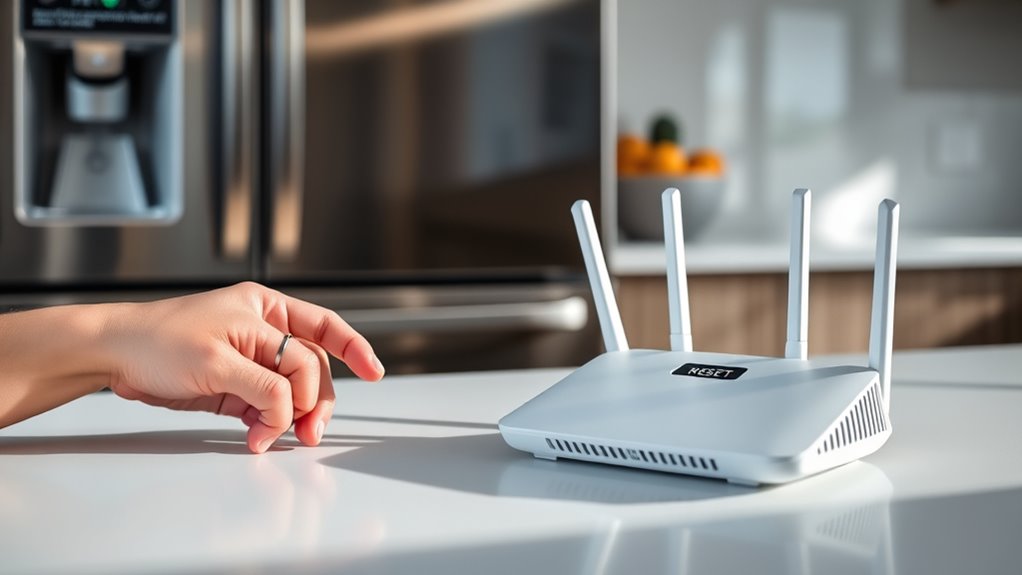
Restarting your smart device and router can often resolve connectivity issues. Power cycle both by unplugging, waiting a few seconds, then plugging them back in. This helps check connection stability and can improve overall performance. Additionally, ensuring your device is within Wi-Fi range can prevent intermittent connections and enhance stability. For optimal results, also verify that your network security settings are compatible with your device. Confirming that your network supports device compatibility can further prevent connection problems and ensure smooth operation. Regularly updating your device firmware can also improve connection stability and prevent future issues.
Power Cycle Devices
Power cycling your smart devices and router can often resolve connectivity issues quickly. To do this, unplug your device and router from power sources, wait about 30 seconds, then plug them back in. This process refreshes their connection and clears temporary glitches. It’s important to verify your device is compatible with your Wi-Fi network, as incompatibility can cause connection problems even after power cycling. Also, check for any pending software updates before restarting, since outdated firmware can hinder connectivity. Restarting both your devices and router resets their network settings, often fixing minor bugs that prevent a stable connection. This simple step can save you time and help your smart appliance reconnect smoothly to your Wi-Fi network. Additionally, ensuring your Wi-Fi signal strength is strong and stable can prevent recurring issues and improve overall device performance. Keep in mind that network congestion during peak hours can also impact connectivity, so consider adjusting your usage or network settings accordingly. To further improve your connection stability, consider inspecting your router placement and minimizing interference from other electronic devices. Regularly updating your firmware can also help maintain optimal connectivity and security for your devices.
Check Connection Stability
If your smart device still isn’t connecting reliably, it’s a good idea to verify the connection stability by restarting both your device and your router. This simple step can often resolve issues caused by weak signal strength or network congestion. When you restart, you give your network a fresh start, improving signal quality and reducing congestion that could be blocking your device’s connection. Ensuring your network is operating with timeless outdoor wisdom can help maintain a reliable connection, especially in remote or challenging environments. Additionally, regular network maintenance can prevent future connectivity issues and keep your smart devices functioning smoothly. Incorporating connection diagnostics into your routine can also help identify persistent problems early and ensure your network remains reliable and resilient.
Verify Your Device’s Wi-Fi Settings

Before attempting to connect your smart appliance to Wi-Fi, make sure to verify its network settings to guarantee everything is correctly configured. Start by confirming device compatibility with your network’s Wi-Fi standards and frequency bands—some appliances only work with 2.4 GHz networks. Next, check the Wi-Fi encryption type; your device may not support advanced security protocols like WPA3, leading to connection issues. Ensure the device’s Wi-Fi is enabled and that you’re connecting to the correct network name (SSID). Double-check the password, and if your network has multiple security settings, opt for the most compatible option. Properly configured settings help prevent connection failures caused by incompatible device features or security protocols. Additionally, understanding your device’s supported Wi-Fi standards can help identify potential compatibility issues before troubleshooting. Being aware of wave and wind factors can also influence Wi-Fi signal strength and stability, further affecting your device’s ability to connect successfully. It’s also helpful to keep your router’s firmware updated to maintain optimal network performance and reduce connection problems. Regularly checking for interference sources in your environment can also improve overall connectivity.
Ensure Your Router’s Firmware Is Up to Date

Keeping your router’s firmware up to date is essential for a stable and secure Wi-Fi connection. Updated firmware improves router security by patching vulnerabilities and ensures firmware compatibility with your smart appliances. Outdated firmware can cause connectivity issues and leave your network exposed. To update, visit your router manufacturer’s website or access its admin panel. Regularly monitoring your device firmware helps maintain optimal performance and security. Staying current with firmware updates also supports smart‑home integrations, allowing your household robots and appliances to communicate effectively. Maintaining updated firmware can also prevent compatibility issues between your devices and the router. Firmware updates often include performance improvements that enhance your Wi-Fi stability. Here’s a simple view to imagine:
| Firmware Status | Impact |
|---|---|
| Up to date | Better security, reliable connections |
| Outdated | Security risks, compatibility issues |
| Recent update | Smooth device performance |
| Missing updates | Potential Wi-Fi disruptions |
| Firmware version check | Ensures your router is current |
Staying current helps prevent connectivity hiccups and protects your network.
Move the Device Closer to the Router

Moving your smart appliance closer to the router can substantially improve its Wi-Fi connection. When the device is nearer, the signal strength increases, leading to a more stable and reliable connection. Poor device placement often causes weak signals, resulting in dropped connections or slow data transfer. To enhance performance, position your appliance within a reasonable distance from the router, avoiding thick walls or large metal objects that can obstruct the signal. If possible, keep the device off the floor and away from electronic interference. This simple adjustment can make a significant difference in connectivity, ensuring your smart appliance functions smoothly. Remember, ideal device placement is key to maintaining a strong, consistent Wi-Fi signal.
Reset Your Smart Appliance to Factory Settings

If you’re having trouble connecting your smart appliance, resetting it to factory settings can often help. Make sure you follow the specific factory reset process for your device to avoid errors. If you encounter reset errors, troubleshooting steps can usually resolve the issue quickly.
Factory Reset Process
Resetting your smart appliance to its factory settings can resolve persistent issues and restore default configurations. To perform a factory reset, locate the reset button or follow your device’s specific reset procedure. This process clears all personalized settings and resets the device calibration to original factory standards.
Imagine:
- Pressing and holding a small reset pinhole button
- Watching LEDs blink or indicators flash during reset
- Waiting for the device to reboot automatically
- Seeing default settings restored on your app or display
- Reconnecting the appliance to Wi-Fi after reset
This simple step often clears stubborn connectivity glitches, making your device ready for fresh setup. Remember, a factory reset is a reliable way to troubleshoot Wi-Fi issues before exploring other fixes.
Troubleshooting Reset Errors
Encountering errors during a factory reset can be frustrating, but understanding common issues can help you troubleshoot effectively. One frequent problem is firmware updates that haven’t completed, causing reset errors or device lockups. Verify your smart appliance’s firmware is up to date before attempting a reset, as outdated software can hinder the process. Additionally, device compatibility plays a role; some appliances may not support certain reset procedures or firmware versions. Double-check the manufacturer’s guidelines to confirm your device’s compatibility with reset instructions. If errors persist, try disconnecting the appliance from power for a few minutes, then restart and attempt the reset again. Keeping firmware current and verifying device compatibility can prevent many reset errors and streamline the troubleshooting process.
Make Sure Your Wi-Fi Password Is Correct
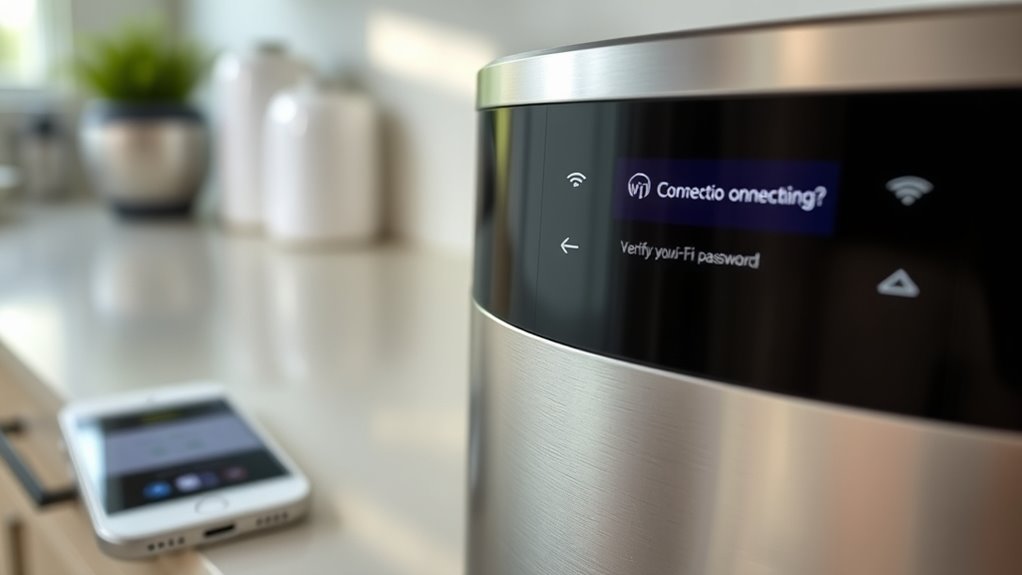
To make certain your smart appliance connects smoothly to your Wi-Fi network, double-check that you’ve entered the correct password. A wrong Wi-Fi password can prevent your device from connecting, even if your network security settings are fine. Confirm the password by accessing your router or network settings. Keep in mind, network security measures often require precise passwords, including uppercase, lowercase, and special characters.
Imagine your setup:
- Typing the Wi Fi password carefully, avoiding typos
- Ensuring you’re on the correct network name (SSID)
- Noticing case sensitivity in password entry
- Updating saved passwords on your device if changed
- Reviewing your router’s security settings for restrictions
Getting the password right is key to a successful connection.
Disable Interfering Devices and Networks

Even with the correct Wi-Fi password, your smart appliance might still struggle to connect if there are other devices or networks causing interference. Interfering devices, like cordless phones, baby monitors, or Bluetooth gadgets, can disrupt your Wi-Fi signal, making it harder for your appliance to establish a stable connection. Network congestion also plays a role; if too many devices are using the same network simultaneously, it can slow down or block connections. To improve the situation, turn off or move interfering devices away from your router and smart appliance. Consider limiting the number of devices connected during setup. By reducing interference and network congestion, you give your smart appliance a better chance to connect successfully.
Consult the Manufacturer’s Support Resources
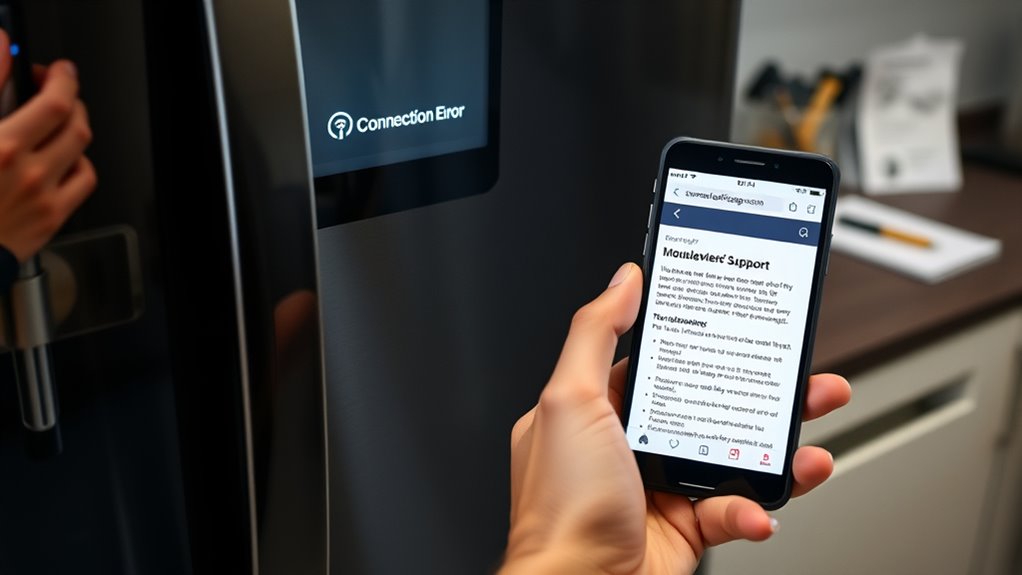
When troubleshooting Wi-Fi connection issues with your smart appliance, consulting the manufacturer’s support resources can save you time and frustration. Manufacturer support often provides detailed troubleshooting guides tailored to your device, making it easier to identify and resolve problems quickly. These resources may include step-by-step instructions, FAQs, and video tutorials. To get started, visit the manufacturer’s website or app, where you’ll find helpful links and contact options. Keep an eye out for online forums or community pages where other users share solutions. Having access to official troubleshooting guides ensures you’re following the best practices for your specific appliance model, reducing guesswork and preventing further issues. This proactive approach streamlines your efforts and helps get your device back online faster.
Frequently Asked Questions
How Do I Update My Smart Appliance’s Firmware Manually?
To perform a firmware update manually, first check your appliance’s settings or user manual for instructions. Download the latest firmware file from the manufacturer’s website onto your computer or USB drive. Then, access your appliance’s menu—often through a dedicated update option—and select manual installation. Follow the prompts to upload the firmware file, ensuring the device stays powered during the update process. This keeps your smart appliance running smoothly with the latest features.
What Should I Do if My Wi-Fi Network Is Down?
Think of your Wi-Fi network as the heartbeat of your smart home; when it’s down, everything pauses. During a Wi-Fi outage, stay calm and perform network troubleshooting by restarting your router and modem. Check your internet service status or contact your provider. Once your network is back alive, reconnect your smart appliance. Remember, a steady network keeps your smart home thriving and connected.
Can I Connect My Device to a Different Wi-Fi Network?
Yes, you can connect your device to a different Wi-Fi network if it’s compatible. First, check Wi-Fi compatibility to verify your device works with the new network. Then, perform network switching by going into your device’s settings, selecting the new network, and entering the password if needed. This often helps resolve connectivity issues and allows your device to function properly on a different network.
How Do I Reset My Router to Factory Settings?
To reset your router to factory settings, locate the reset button usually found on the back or bottom of the device. Press and hold it for about 10-15 seconds with a paperclip or pin until the router’s lights flash. This initiates a router reset, restoring it to factory restore defaults. Keep in mind, you’ll need to reconfigure your network settings afterward.
Why Does My Device Keep Disconnecting From Wi-Fi?
Your device keeps disconnecting from Wi-Fi because of network interference or weak signal strength. To fix this, you should move your router to a central, open location to minimize interference, and keep your device within a good range of the router. Regularly restart your router to refresh the connection, and check for any devices causing signal congestion. Improving signal strength and reducing interference will help your device stay connected longer.
Conclusion
Don’t let device disconnects dampen your digital delight. With a little troubleshooting and troubleshooting, you’ll tame technical troubles and turn your smart appliance back on track. Remember, checking, restarting, and verifying can quickly quell qualms. So stay steady, stay smart, and soon you’ll be syncing smoothly again. Your Wi-Fi woes will wipe away with wise tweaks and a little patience—getting your gadget glowing and going in no time!