If your smart fridge won’t connect to Wi-Fi, start by checking the signal strength near the fridge—move it closer or add an extender if needed. Make sure you’re entering the correct network name and password, especially if your router broadcasts dual bands—your fridge typically uses 2.4GHz. Also, verify your firmware and app are up to date, and reset the connection if necessary. For more detailed tips, keep exploring these troubleshooting steps.

Get kitchen gear delivered free with Prime
- Fast, free delivery on millions of items
- Prime Video, Amazon Music and more included
- Member-only deals all year
Key Takeaways
- Ensure the fridge and mobile device are connected to the same 2.4GHz Wi-Fi network with strong signal strength.
- Re-enter Wi-Fi credentials carefully and reset the network connection if necessary.
- Check for and install any available firmware or app updates for the fridge and your mobile device.
- Power cycle the fridge, router, and mobile device to resolve temporary glitches.
- Verify router settings, disable MAC filtering, and confirm network stability for proper device communication.
As an affiliate, we earn on qualifying purchases.
Check Your Wi-Fi Signal Strength Near the Fridge
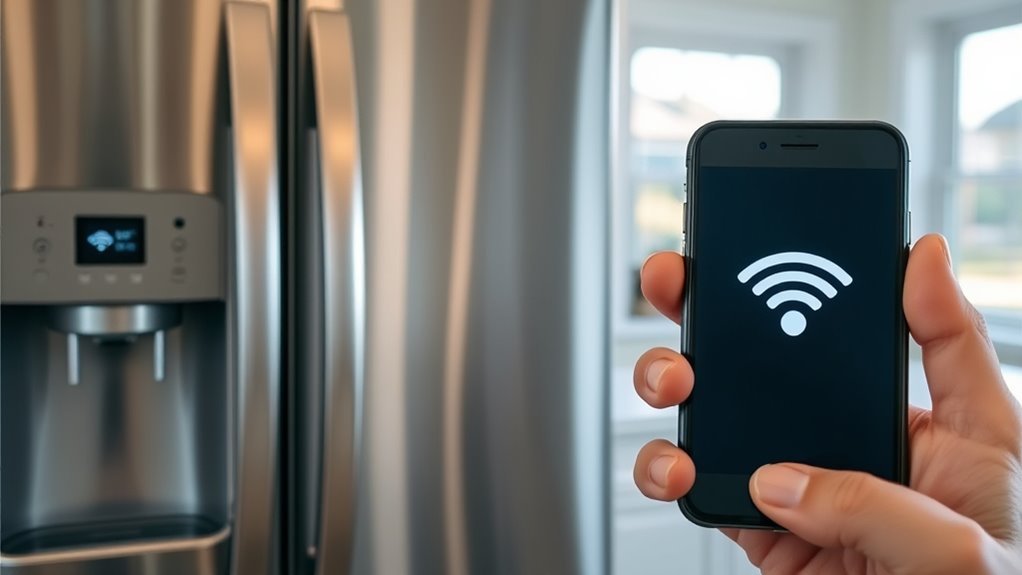
To guarantee your smart fridge connects reliably to Wi-Fi, start by checking the signal strength in its location. You want at least three bars or a strong indicator on your mobile device or router app. Weak signals cause frequent disconnections and slow data transfer, which can hinder the fridge’s ability to stay connected. If the signal is weak, consider moving the router closer to the fridge or placing a Wi-Fi extender nearby. Avoid placing the fridge behind thick walls or metal objects that can block signals. Keep the router elevated and unobstructed to improve coverage. Ensuring a strong, stable Wi-Fi signal near your appliance sets the foundation for a reliable connection, reducing the likelihood of initial setup or ongoing connectivity issues. Additionally, modern Wi-Fi standards can provide more consistent and faster connections, further enhancing your smart device’s performance. A router placement that optimizes coverage can make a significant difference in connection stability. It’s also helpful to check for any interference sources nearby that might disrupt the signal and address them accordingly.
As an affiliate, we earn on qualifying purchases.
Ensure Correct Network Credentials and Password Entry
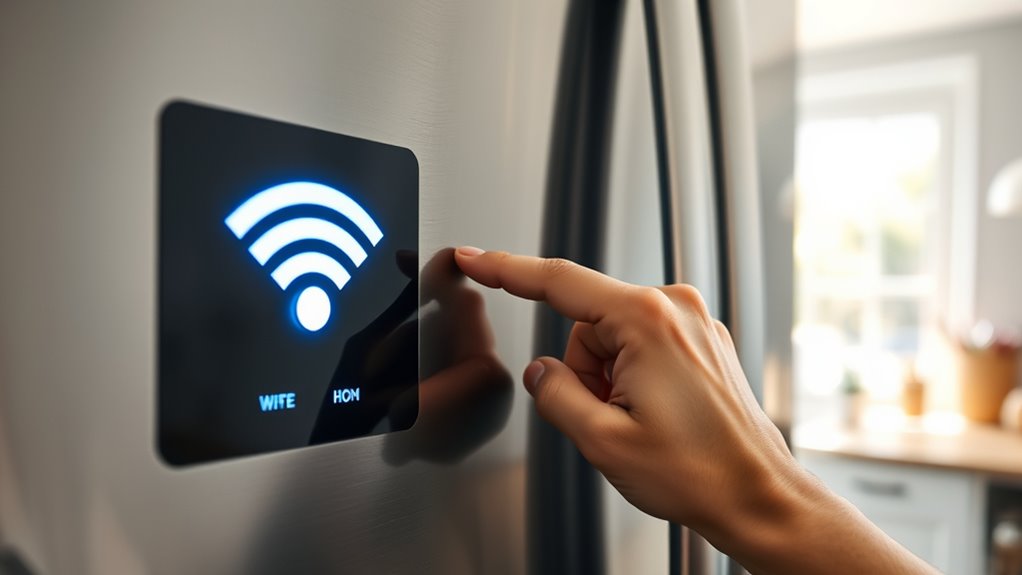
Even with a strong Wi-Fi signal near your fridge, incorrect network credentials or typos during password entry can prevent a successful connection. You need to double-check that every character is correct. Small mistakes can be the root of the problem. To avoid frustration, follow these steps:
- Carefully re-enter your Wi-Fi password, paying attention to special characters and hyphens.
- Use your fridge’s display to verify the network password matches your router’s settings.
- Disconnect other devices from the network and test the password to confirm it works.
- Ensure your mobile device and fridge share the same network credentials for seamless pairing.
Taking these precautions helps prevent simple errors from blocking your smart fridge’s connection.
smart fridge Wi-Fi troubleshooting kit
As an affiliate, we earn on qualifying purchases.
As an affiliate, we earn on qualifying purchases.
Confirm Compatibility With the 2.4ghz Band
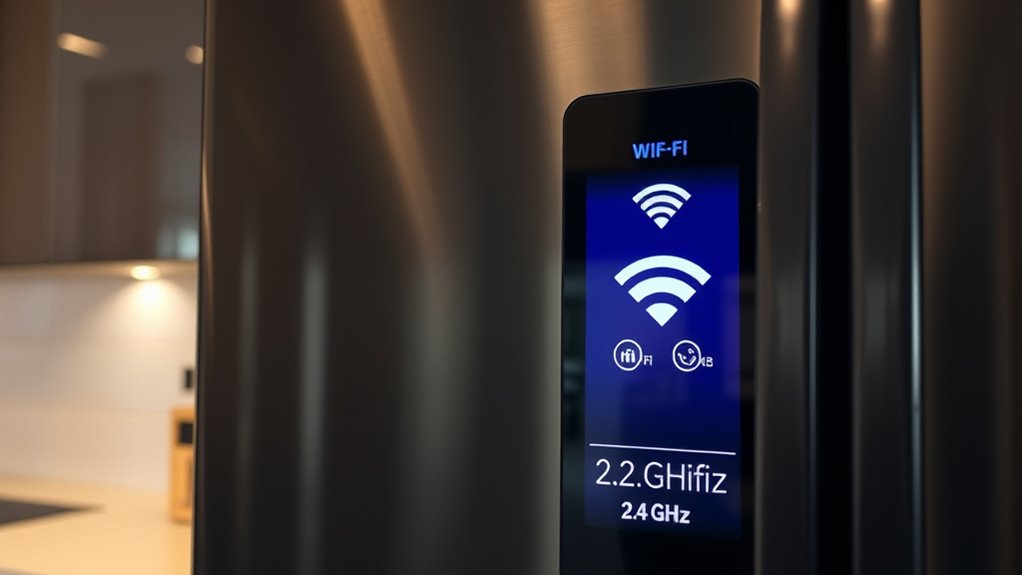
First, check your router’s band settings to guarantee it’s broadcasting a 2.4GHz network. Then, verify that your smart fridge model supports this frequency, as some only work with 2.4GHz. If needed, adjust your router to broadcast only the 2.4GHz band for a stable connection. Additionally, ensure your network uses Free Floating technology, which can affect how devices connect to the Wi-Fi network. Consulting your device’s specifications can also help determine if there are compatibility issues that might prevent a connection. It’s also helpful to review your smart fridge’s electric compatibility requirements, as some models have specific power and network standards for optimal operation. Checking the network security settings can further prevent connection problems. Be aware that certain network configurations can interfere with device connectivity, so reviewing these settings is recommended.
Verify Router Band Settings
Ensuring your router is set to the correct frequency band is essential for a stable smart fridge connection. If your fridge only supports 2.4GHz, connecting it to a 5GHz network will cause issues. Check your router settings to verify it’s broadcasting the correct band. Here are key steps to confirm:
- Log into your router’s admin panel and locate the wireless settings.
- Ensure the 2.4GHz band is enabled and broadcasting separately from 5GHz.
- Verify the network name (SSID) for 2.4GHz matches what you’re trying to connect your fridge to.
- Disable the 5GHz band temporarily if needed, to force your device to connect to 2.4GHz.
Ensure Model Supports 2.4GHz
Before connecting your smart fridge to your Wi-Fi network, it’s important to verify that the appliance model supports the 2.4GHz band. Check your user manual or manufacturer’s website to confirm this. Many smart appliances are designed to connect only to the 2.4GHz frequency, as it offers better range and compatibility. If your router broadcasts both 2.4GHz and 5GHz, ensure that your fridge isn’t attempting to connect to the 5GHz band. Some models won’t detect or connect to 5GHz networks, which can cause connection issues. To avoid confusion, you may want to disable the 5GHz band temporarily or set up a separate SSID for the 2.4GHz network. Confirming compatibility prevents frustration and streamlines the troubleshooting process. Additionally, understanding your router’s frequency bands can help you optimize your smart appliance’s connection. Knowing the wireless network setup can also assist in resolving connectivity problems more efficiently. It’s also helpful to be aware of common connectivity issues related to smart appliances to troubleshoot more effectively.
As an affiliate, we earn on qualifying purchases.
Update Firmware and Mobile App Software

Updating your smart fridge’s firmware and mobile app software is essential for maintaining a stable Wi-Fi connection. Outdated software can cause compatibility issues or bugs that disrupt connectivity. To guarantee everything runs smoothly, follow these steps:
Keep your smart fridge connected by updating firmware and app software regularly.
- Check for firmware updates on your fridge through the manufacturer’s app or display.
- Download and install the latest version of the mobile app from your device’s app store.
- Clear the app cache to eliminate temporary glitches affecting communication.
- Keep your mobile device’s operating system up to date for peak app performance.
- Regularly reviewing software updates helps prevent connection issues and ensures your device stays secure.
Staying current with updates not only improves connection stability but also enhances security and adds new features. Don’t let outdated software stand in the way of a reliable Wi-Fi connection—act now!
Verify Router Settings and Frequency Configuration
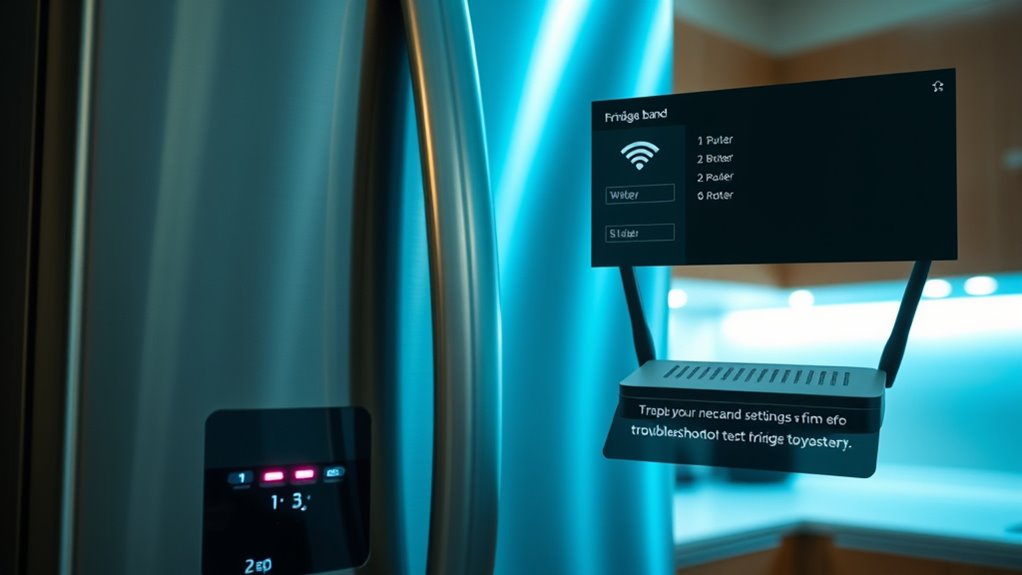
Checking your router settings and frequency configuration helps prevent many Wi-Fi connection issues with your smart fridge. First, verify your router broadcasts a stable 2.4GHz signal, as most smart appliances only support this band unless specified otherwise. If your router is dual-band, confirm that the smart fridge connects specifically to the 2.4GHz network, not the 5GHz. Disable any 5GHz-only mode during setup. Also, verify the SSID name is free of spaces or special characters, which can cause connection problems. Use only alphanumeric characters for your network password to ensure compatibility. Additionally, disable MAC address filtering, as it may block your fridge from accessing the network. Ensuring your network security settings are properly configured helps establish a reliable Wi-Fi connection between your router and your smart fridge. Confirming that your router has proper wireless network configuration ensures compatibility with your smart appliance. Proper Wi-Fi configuration is essential for ensuring your smart appliance maintains a steady connection. Moreover, regularly updating your router firmware can prevent connectivity issues and improve overall network stability. You should also perform a network diagnostics test if problems persist, to identify underlying issues.
Reset and Reconfigure the Smart Fridge Network Connection
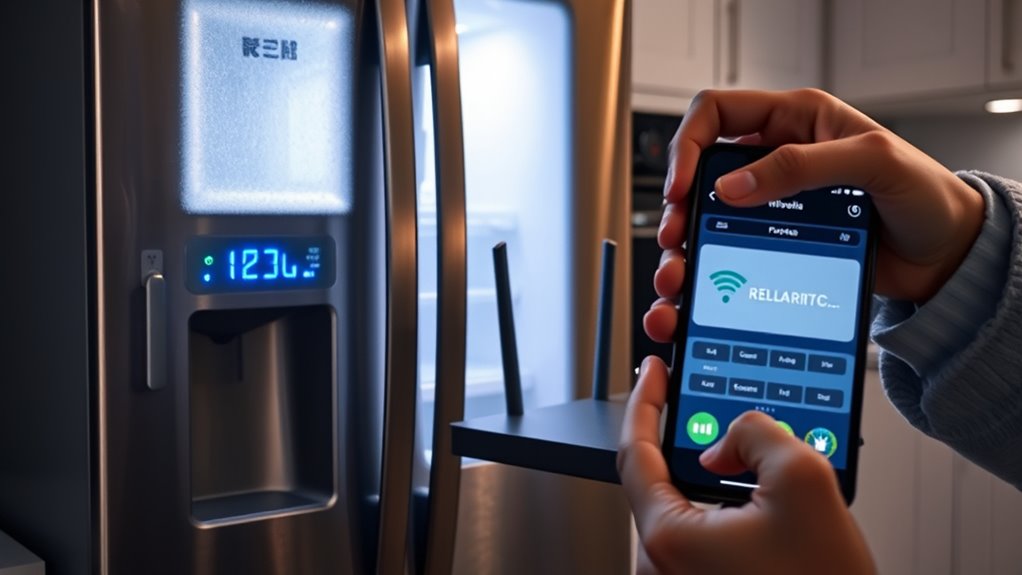
To reset your smart fridge’s network connection, start by clearing the saved network settings on the appliance. Then, power cycle both the fridge and your mobile device to refresh the connection. Finally, follow the manufacturer’s instructions to reconfigure and test the network to guarantee a stable Wi-Fi link.
Reset Network Settings
When resetting the network settings on your smart fridge, start by removing any saved Wi-Fi networks from the device. This clears out old or corrupted configurations that might be causing the connection issue. Once you’ve done that, follow these steps:
- Power off the fridge, unplug it, and wait 60 seconds before plugging it back in.
- Access the network reset option on your fridge’s display or settings menu.
- Confirm the reset to erase all previous network data and prepare for fresh setup.
- Re-enter your Wi-Fi details carefully, ensuring no typos or special characters cause errors.
- Keep in mind that security zones information can impact device connectivity and should be reviewed if issues persist.
Resetting the network settings can often resolve stubborn connection problems and pave the way for a clean, successful reconnection.
Reconnect and Test
If your smart fridge still isn’t connecting after resetting its network settings, the next step is to reconfigure the connection from scratch. Begin by removing the saved network details on your fridge, typically through the “Forget Network” option. Power cycle both your fridge and mobile device to clear temporary glitches. Then, press and hold the Connect Module button until the LED flashes, entering pairing mode. Use your mobile app to remove and re-add the appliance, following manufacturer instructions carefully. When reconnecting, verify you’re selecting the correct 2.4GHz network, entering the SSID and password accurately without typos or special characters. Confirm your router’s settings meet the compatibility requirements, and test the connection by checking if the appliance operates normally. This process helps establish a fresh, stable network connection.
Troubleshoot Hardware and Power Cycle Devices

Hardware issues and power-related problems are common causes of Wi-Fi connectivity failures on your smart fridge. To fix this, start by:
- Unplug your fridge for 60 seconds to fully reset the internal circuitry.
- Check all power connections to ensure the fridge’s power cord is secure and undamaged.
- Press and hold the Connect Module button until the LED flashes, indicating pairing mode.
- Power cycle your mobile device to clear temporary software glitches that might interfere with the connection.
- Connected home fitness devices like smart fridges often rely on a stable network, so ensuring your Wi-Fi network is functioning properly can help prevent future issues.
These steps help eliminate hardware glitches and power issues that can disrupt Wi-Fi. Resetting your devices and ensuring proper power flow can often restore your smart fridge’s connectivity without further frustration.
Ensure Stable Connection Between Your Mobile Device and Fridge
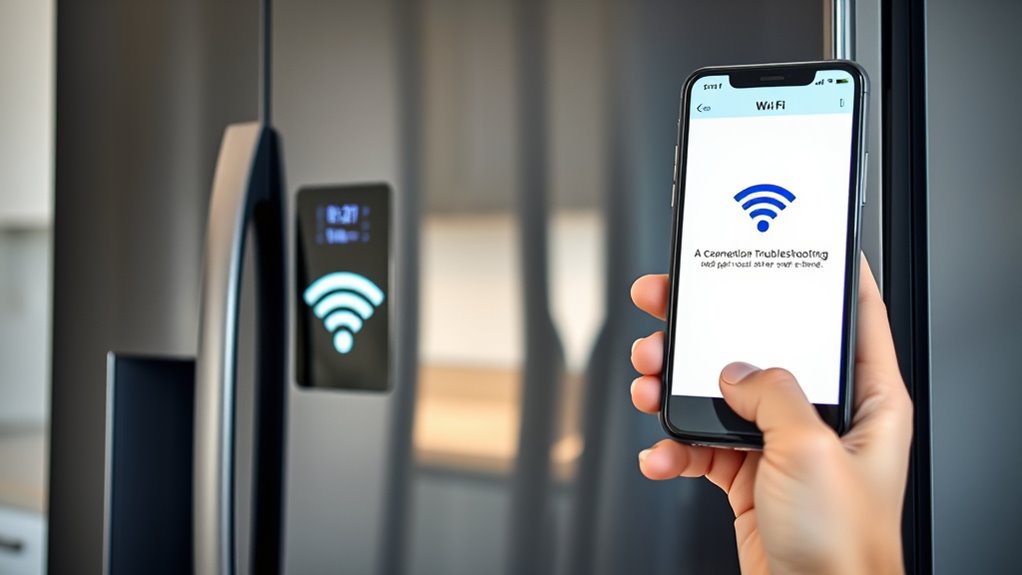
After resetting your devices, verifying that your mobile device and smart fridge stay connected to the same network is essential for stable communication. Confirm both are linked to the same Wi-Fi band and network name. If they’re on different networks, your devices won’t communicate properly. Use the table below to verify your connection status:
| Device | Connection Status |
|---|---|
| Mobile Device | Connected to Wi-Fi with strong signal |
| Smart Fridge | Connected to same Wi-Fi network |
| Network Name | Match on both devices |
| Signal Strength | More than three bars on both devices |
| Frequency Band | Both on 2.4GHz (if applicable) |
Keeping both devices on the same, stable network band ensures seamless communication and prevents disconnection issues.
Frequently Asked Questions
How Do I Check if My Fridge Supports 5GHZ Wi-Fi?
To check if your fridge supports 5GHz Wi-Fi, first review the user manual or product specifications online. Look for mentions of dual-band capability or 5GHz support. If you’re unsure, contact the manufacturer directly or visit their website for detailed info. You can also check your router settings to see if the fridge’s network options include a 5GHz band, but verifying the fridge’s specs is the most reliable way.
Can a Wi-Fi Extender Improve My Fridge’s Connection?
Yes, a Wi-Fi extender can improve your fridge’s connection. It boosts signal strength in weak areas, making it easier for your appliance to stay connected. Place the extender halfway between your router and fridge, ensuring it covers the fridge’s location. This helps eliminate dead zones and stabilizes the connection, especially if your Wi-Fi signal is weak or inconsistent. Just make sure the extender supports the same frequency band as your router.
What Should I Do if My Mobile Device Disconnects During Setup?
If your mobile device disconnects during setup, stay calm, stay patient, and stay focused. First, verify your device and fridge are both connected to the same stable Wi-Fi network. Next, restart your mobile device and the fridge to refresh connections. Re-enter your network details carefully, avoiding typos or special characters. Finally, reset your device’s Wi-Fi settings if needed, then attempt the setup again, keeping a steady hand and clear mind.
How Do I Reset My Fridge’s Network Settings Completely?
To reset your fridge’s network settings completely, start by accessing the fridge’s settings menu. Select the option labeled “Network” or “Wi-Fi” and then choose “Forget Network” or “Reset Network Settings.” Confirm your choice, and if needed, power off the appliance for 60 seconds before restarting. This process clears all saved network info, allowing you to reconnect from scratch, ensuring a fresh start for your Wi-Fi setup.
Is There a Way to Test My Wi-Fi Password for Errors?
Yes, you can test your Wi-Fi password for errors by disconnecting another device from the network and then manually reconnecting it using the same password. If the device connects successfully, your password is correct. If not, re-enter the password carefully, paying attention to special characters and hyphens. Double-check the password on your router’s admin page or the network settings on your mobile device to verify accuracy.
Conclusion
Think of your smart fridge as a stubborn friend needing a little coaxing. With these troubleshooting steps, you’re gently guiding it back to the Wi-Fi dance floor. Sometimes, a simple reset or a quick firmware update is all it takes to rekindle the connection. Keep patient, stay persistent, and soon your fridge will be syncing smoothly, like a well-rehearsed duet. Before you know it, your kitchen tech will be humming in perfect harmony again.
Columbus Day / Indigenous Peoples' Day Picks
long weekend sales
As an affiliate, we earn on qualifying purchases.