To update your smart fridge’s software, check your brand’s specific instructions—often through the device settings, companion app, or automatically via Wi-Fi. Some models update automatically, while others need manual approval, so make certain your Wi-Fi connection is stable before starting. Verify the update completed successfully by confirming the firmware version. For more detailed steps and troubleshooting tips, you’ll find useful information to help keep your fridge running smoothly.

Get kitchen gear delivered free with Prime
- Fast, free delivery on millions of items
- Prime Video, Amazon Music and more included
- Member-only deals all year
Key Takeaways
- Check your fridge’s settings menu or companion app for firmware update options.
- Ensure your device is connected to a stable Wi-Fi network before updating.
- For automatic updates, verify that the feature is enabled in device or app settings.
- Manually initiate updates if available, following prompts or instructions provided.
- Confirm the update is successful by verifying the firmware version after installation.
smart fridge firmware update kit
As an affiliate, we earn on qualifying purchases.
As an affiliate, we earn on qualifying purchases.
Checking for Software Updates on Different Brands
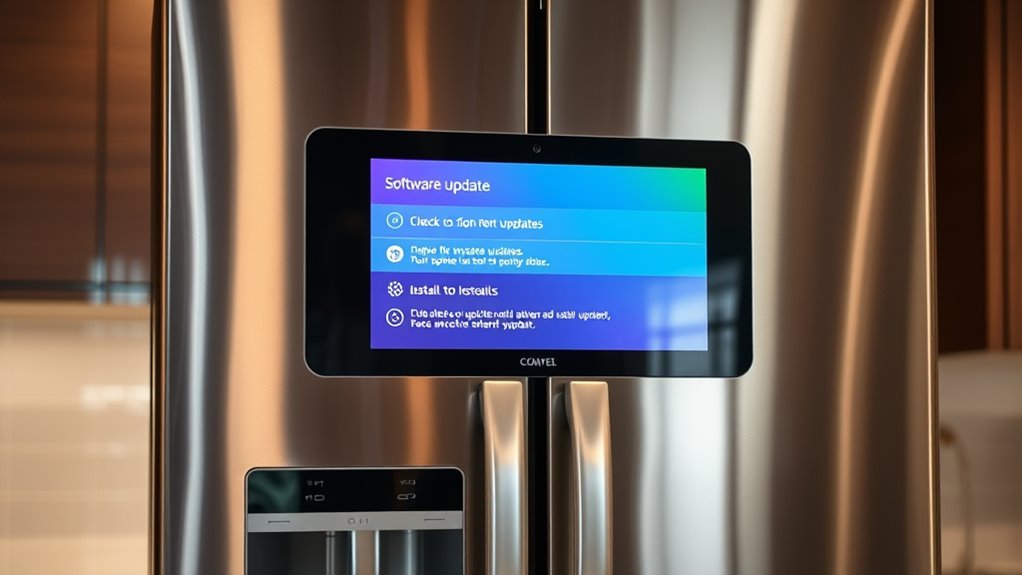
Checking for software updates on your smart fridge varies depending on the brand. If you have a Samsung Family Hub, go to Settings, tap About Family Hub, and verify for updates. Samsung models connected to SmartThings can be updated through the device menu within the app. Samsung refrigerators often receive firmware updates automatically, ensuring optimal performance and security. These updates can also include security patches that protect your device from vulnerabilities. Regularly checking for software updates helps identify new features or improvements that manufacturers release to enhance user experience. For example, some models may offer automatic update settings that you can toggle on or off. LG Craft Ice refrigerators typically update automatically once connected to Wi-Fi through the LG ThinQ app, but you can also verify for updates in the app’s settings. GE SmartHQ appliances receive critical updates automatically when connected, though performance updates might need your approval. Different brands have unique pathways, but most involve accessing settings menus or companion apps. Regularly verifying these ensures your fridge stays current, secure, and fully functional. Additionally, high refresh rates can improve the responsiveness of smart features and notifications, enhancing overall user experience.
As an affiliate, we earn on qualifying purchases.
Step-by-Step Guide to Updating Your Refrigerator
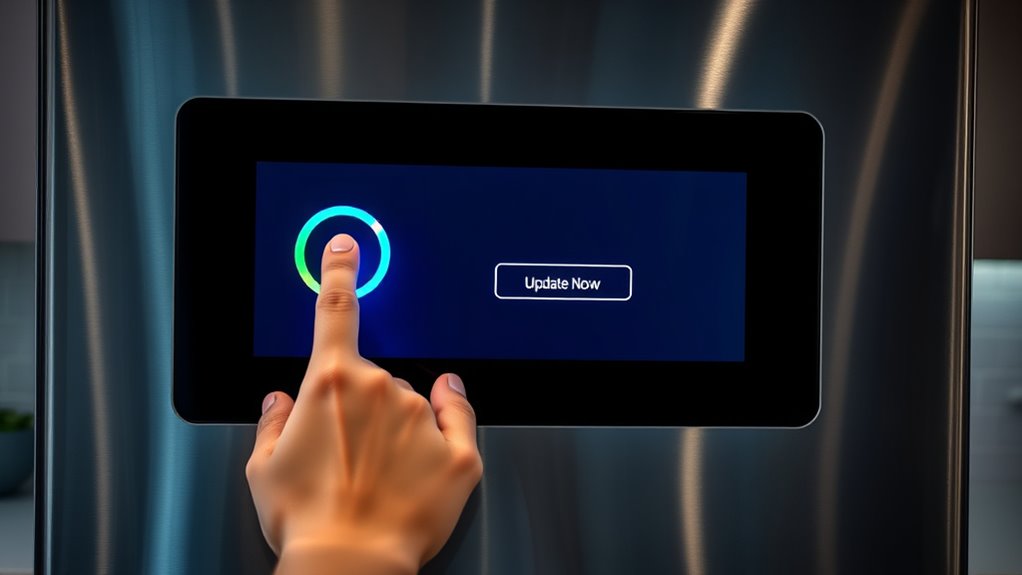
To update your smart fridge, start by accessing the relevant update settings through its menu or companion app. Follow the prompts to initiate the installation, and keep an eye on progress bars to see the process unfold. Additionally, ensure your device is connected to a stable European cloud infrastructure to facilitate a smooth update process. Once the update is complete, confirm the new software version to verify everything installed correctly.
Access Update Settings
Accessing the update settings on your smart refrigerator is a crucial step to guarantee your appliance runs smoothly with the latest features and security patches. To do this, start by steering to the settings menu on your device or app. For Samsung models, pull down the quick panel and tap Settings, then About Family Hub. LG refrigerators typically require opening the LG ThinQ app, selecting your fridge, and accessing firmware options. GE SmartHQ appliances often update automatically, but performance updates may need manual approval within the app. Regular maintenance and keeping your firmware current help ensure optimal performance and security. Ensuring your device’s firmware updates are performed regularly helps protect against vulnerabilities and improves overall functionality. Make sure your device is connected to Wi-Fi. Use the dedicated app to access device controls. Read notices or prompts about available updates. Follow on-screen instructions for manual updates. Keeping your device’s software current is essential for security and compatibility, and understanding the update process can help you troubleshoot any issues effectively. Additionally, understanding firmware update procedures can streamline the process and reduce potential errors.
Confirm Update Completion
Wondering if your refrigerator update was successful? First, check the control panel or display screen for a confirmation message or updated software version. On Samsung models, navigate to Settings > About Family Hub or the device info section in SmartThings to verify the firmware version matches the latest release. For LG refrigerators, the ThinQ app usually shows the current firmware status after a successful update. GE appliances often display a confirmation message or show the new software version on the control panel. If you don’t see any indication, restart the fridge or reconnect it to Wi-Fi to refresh the connection. Persistent doubts may require consulting the user manual or contacting customer support to confirm the update was successfully completed. Additionally, software updates can enhance your refrigerator’s performance and security. Regularly checking for firmware discrepancies can help ensure your appliance is running the latest features and improvements, which is especially important for maintaining device security and functionality. Moreover, being aware of user privacy and how your data is managed during these updates can help protect your information.
smart fridge software update tool
As an affiliate, we earn on qualifying purchases.
As an affiliate, we earn on qualifying purchases.
Understanding Automatic Versus Manual Updates
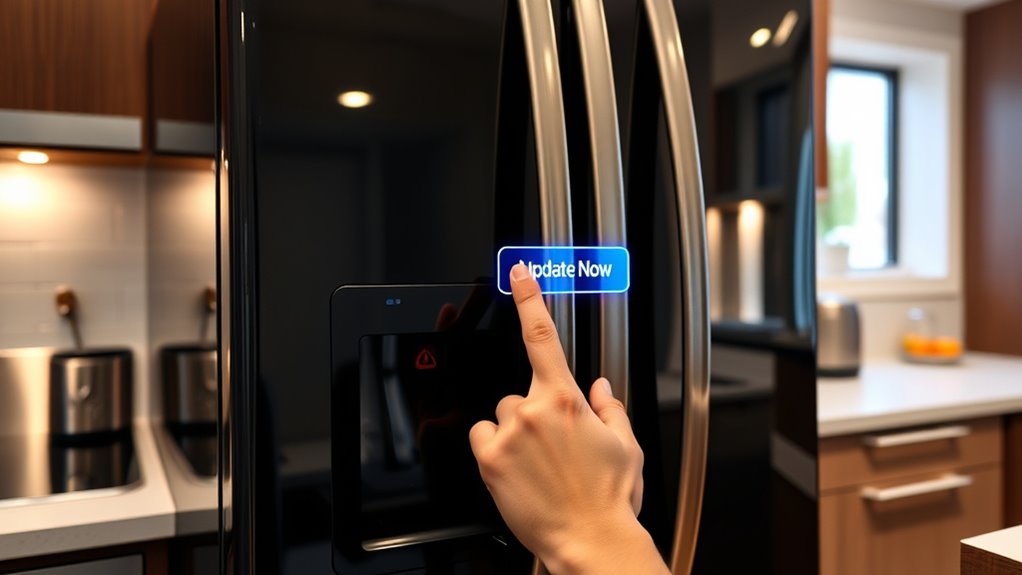
Understanding automatic versus manual updates is key to keeping your smart fridge secure and fully functional. Automatic updates happen seamlessly, often without your intervention, ensuring your fridge stays current with security patches and performance improvements. Manual updates, on the other hand, require you to initiate or confirm the process, giving you control over when updates occur. This difference impacts convenience and security: automatic updates reduce vulnerability by installing critical fixes immediately, while manual updates allow you to review changes beforehand. Additionally, update management plays a role in balancing security and user control. Critical security patches often push automatically for safety, while performance improvements may need manual approval. Some brands require manual update initiation, and features may only activate after specific updates. Notifications alert you when manual action is needed. Thermal behavior in smart appliances can influence update performance and stability. Proper software version control is essential to ensure compatibility and optimal operation of your smart fridge. Being aware of update scheduling can help prevent disruptions during critical usage periods.
refrigerator firmware update device
As an affiliate, we earn on qualifying purchases.
As an affiliate, we earn on qualifying purchases.
Preparing Your Smart Fridge for an Update
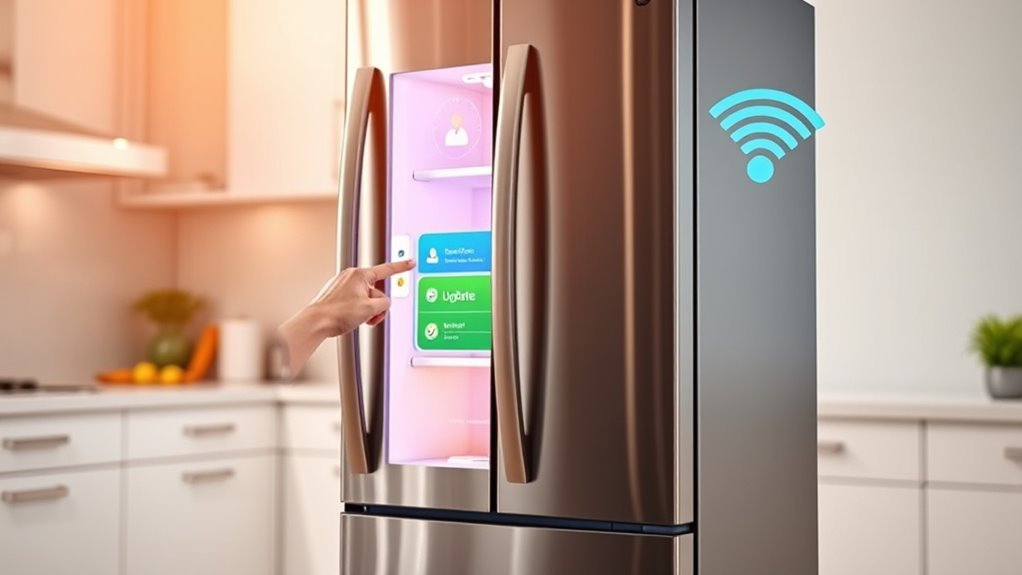
Before starting your smart fridge update, make sure your Wi-Fi connection is stable to prevent interruptions. Turn off mobile data on your smartphone or tablet to avoid any conflicts during the process. Taking these steps guarantees the update proceeds smoothly and without issues. Additionally, ensure your device’s software and firmware are up to date to support new features and security improvements. Confirming your network stability helps to prevent failed updates due to connectivity issues. Ensuring your power source is reliable also minimizes the risk of interruptions during the update process.
Ensure Stable Wi-Fi Connection
A stable Wi-Fi connection is essential for a smooth and successful software update of your smart fridge. Without reliable internet, the update may fail or cause issues during installation. Before starting, check your Wi-Fi signal strength and ensure your fridge is within range of your router. Consider restarting your router if you experience connectivity problems. Avoid competing devices streaming or downloading large files, as they can slow down your connection. Also, make sure your Wi-Fi network is secure to prevent interruptions. Remember, a reliable internet connection is key to avoiding update failures and ensuring your fridge’s software runs smoothly. Maintaining a stable connection can also help prevent time zone discrepancies that might affect scheduled updates or notifications. Additionally, verifying your network’s bandwidth capacity can help ensure your update proceeds without interruptions. To further improve the update process, periodically monitor your network performance to identify and resolve potential issues.
Turn Off Mobile Data
Turning off mobile data on your smartphone is a essential step to guarantee a smooth software update for your smart fridge. When mobile data is active, your device might interfere with the Wi-Fi connection or cause conflicting network activity, potentially disrupting the update process. To avoid interruptions, disable cellular data before starting the update. On most smartphones, you can do this easily through the quick settings panel or the settings menu. Once mobile data is turned off, connect your phone to the same Wi-Fi network as your fridge, ensuring a stable connection. This minimizes the risk of connection issues and helps the update proceed without interruptions. Turning off mobile data is a simple but vital step in preparing your smart fridge for a successful software update.
Verifying Successful Installation and Troubleshooting
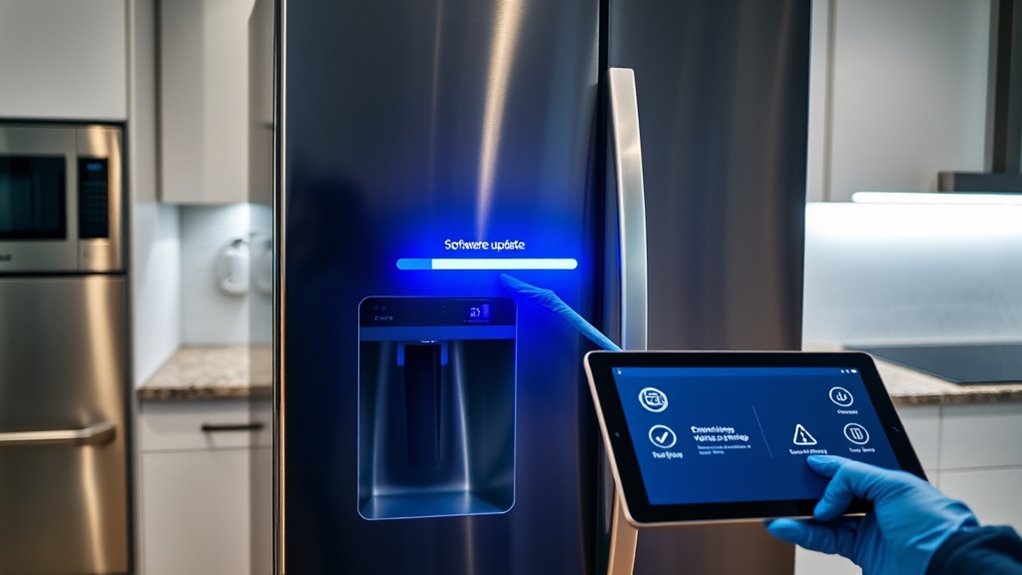
To guarantee your software update was successful, start by verifying the current firmware version on your refrigerator. Check the information menu or control panel, depending on your model. If the version matches the latest release, your update likely succeeded. If not, consider troubleshooting.
- Confirm Wi-Fi connection stability to prevent interrupted updates
- Restart the fridge and attempt verification again for clarity
- Ensure the refrigerator’s software version displays correctly on its panel or app
- Review recent update notifications or logs for confirmation
- Contact customer support if the version remains outdated or issues persist
Troubleshooting may involve reinitiating the update process, resetting network settings, or consulting the manufacturer’s help resources. Persistent problems could require professional assistance to resolve.
Why Regular Software Updates Are Important
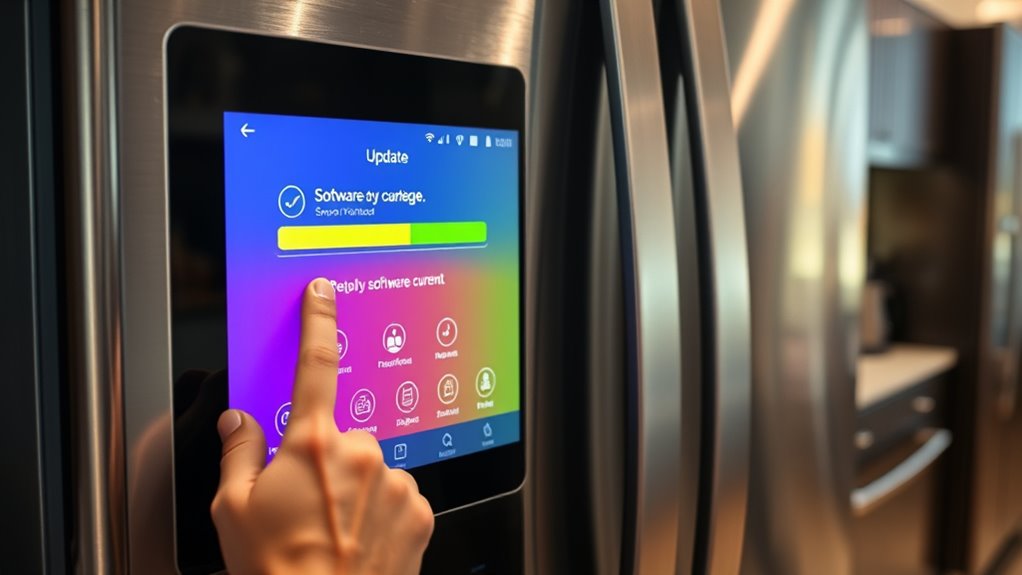
Regular software updates are essential because they fix bugs, enhance security, and add new features that keep your smart fridge functioning at its best. Bugs can cause glitches, slow performance, or even disrupt your fridge’s functions, but updates resolve these issues quickly. Security improvements protect your data and prevent unauthorized access, keeping your information safe. Updates also introduce new features, such as better inventory management or smarter notifications, improving your user experience. Additionally, regular updates guarantee compatibility with other smart home devices and evolving apps, preventing connectivity problems. By keeping your fridge’s software current, you reduce the risk of malfunctions and security vulnerabilities, ensuring your appliance continues to operate smoothly and efficiently over time.
Frequently Asked Questions
Can I Update My Smart Fridge Without an Internet Connection?
You can’t update your smart fridge without an internet connection. Most brands require a Wi-Fi connection to download and install software updates automatically or manually. Without internet, your fridge won’t be able to access the latest firmware or software improvements, which are essential for fixing bugs, adding features, and maintaining security. Make sure your fridge is connected to Wi-Fi before attempting any updates to keep it running smoothly.
How Long Does a Typical Software Update Take?
A typical smart fridge software update takes about 10 to 30 minutes, depending on the brand and the size of the update. You should keep your fridge connected to WiFi during the process and avoid interrupting it. Larger updates or multiple updates may take longer. To guarantee smooth installation, stay nearby and don’t turn off the power until the update completes. Once finished, your fridge will usually restart automatically.
Will Updating Erase My Custom Settings or Stored Data?
Updating your smart fridge usually won’t erase your custom settings or stored data. Think of it like giving your fridge a tune-up—most updates simply add new features or fix bugs without touching your personalized preferences. However, some models may require a factory reset after major updates, which can wipe your data. Always back up important settings if possible, and check instructions beforehand to keep your favorite configurations safe and sound.
Is It Safe to Cancel an Update Mid-Process?
You shouldn’t cancel an update mid-process, as it can cause software corruption or make your fridge malfunction. Let the update finish completely to guarantee it installs properly and maintains stability. If you encounter issues or need to stop the update, contact customer support before taking any action. Interrupting updates risks bricking your appliance or losing important settings, so it’s best to be patient and allow the process to complete fully.
What Should I Do if the Update Causes My Fridge to Malfunction?
Imagine your fridge as a trusted friend who suddenly acts up after a new update. If your fridge malfunctions, first unplug it for a minute to reset. Check for any error messages or code displays. Then, reconnect and restart the update if needed. If issues persist, consult the manual or contact customer support. Sometimes, a simple reset restores harmony, like calming a restless friend.
Conclusion
Just like tending a garden guarantees healthy growth, keeping your smart fridge updated nurtures its performance and longevity. Regular updates are your tools to prune out bugs, enhance features, and keep everything running smoothly. Don’t let your fridge fall behind in the digital age — stay proactive and keep it in top shape. With each update, you’re planting seeds for a smarter, more efficient kitchen that works seamlessly for you.
Evergreen bestsellers Picks
bestsellers
As an affiliate, we earn on qualifying purchases.